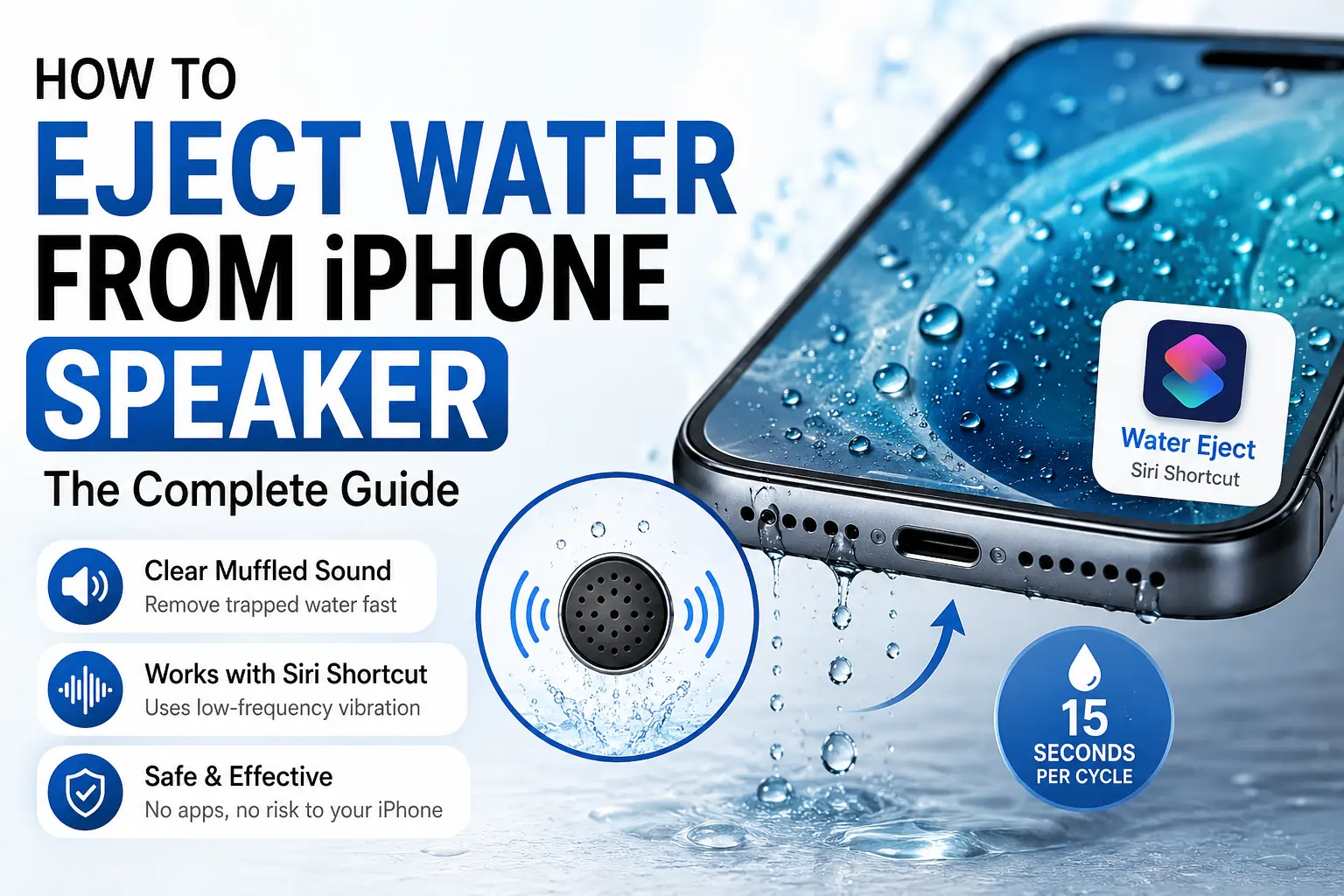
How to Eject Water from iPhone Speaker: The Complete Guide
Your iPhone might carry an IP68 water resistance rating, but that doesn’t mean water can’t sneak into the speaker grille after a rainy walk, a splash at the sink, or an accidental dip in the pool. When that happens, sound comes out muffled, distorted, or noticeably quieter — and reaching for a bag of rice isn’t actually the fastest or most effective fix anymore.
Apple’s own Apple Watch has a built-in “Water Lock” feature that ejects water using sound vibration. iPhones don’t have this feature built in by default, but you can achieve the exact same result using a Siri Shortcut or a dedicated water-eject tool. This guide walks through exactly how to eject water from your iPhone speaker, step by step, plus what to do if it doesn’t fully clear on the first try.

Why Water Gets Trapped in an iPhone Speaker
Even with a water-resistant rating, the tiny perforations in your iPhone’s speaker grille are still an entry point for moisture. Water resistance ratings like IP67 and IP68 mean your iPhone can survive brief exposure without permanent damage, but they don’t prevent water from settling on the fine mesh covering the speaker driver.
Once a droplet lands there, surface tension holds it in place rather than letting it drain away naturally. That trapped moisture muffles sound, reduces volume, and can cause a crackling or distorted effect during calls, music, or notifications — until it’s physically removed.
Does the iPhone Have a Built-In Water Eject Feature?
Not natively. This is one of the more surprising gaps compared to the Apple Watch, which has had a native Water Lock ejection feature since its earliest models. On iPhone, you’ll need to either set up a Siri Shortcut that replicates this function or use a dedicated water-eject web tool or app — both of which rely on the exact same underlying principle: a calibrated low-frequency sound that vibrates the speaker to push water out.
Method 1: Using the Water Eject Siri Shortcut
The most popular way to eject water from an iPhone speaker is through a custom Siri Shortcut, since it integrates directly with iOS and can be triggered hands-free.
Step 1: Download the Water Eject Shortcut
Open Safari on your iPhone and search for the “Water Eject” shortcut from the Shortcuts Gallery, or use a link shared by a trusted source. Tap “Add Shortcut” to add it to your Shortcuts library.
Step 2: Grant the Required Permissions
Since this is a shortcut from an untrusted source (not an official Apple shortcut), you’ll be prompted to allow permissions the first time you run it. Review and accept these to continue.
Step 3: Open the Shortcuts App
Find “Water Eject” in your Shortcuts library and tap it, or simply say “Hey Siri, Water Eject” if you have Siri voice activation set up.
Step 4: Select an Intensity Level
Many versions of this shortcut let you choose an intensity level, typically from 1 to 3. Start with a lower level for light exposure and increase it if the sound doesn’t clear up right away.
Step 5: Let the Tone Play
The shortcut will play a low-frequency tone for roughly 15 seconds. You should notice a light vibration or humming sensation coming from the speaker area while it runs.
Step 6: Check for a Confirmation
Once finished, you’ll typically see a notification confirming that water has been ejected, and your iPhone’s volume may automatically reset to around 50%.
Step 7: Repeat if Needed
If your speaker still sounds muffled, run the shortcut again. It’s safe to repeat several times, especially after heavier water exposure.
Method 2: Using a Web-Based Water Eject Tool
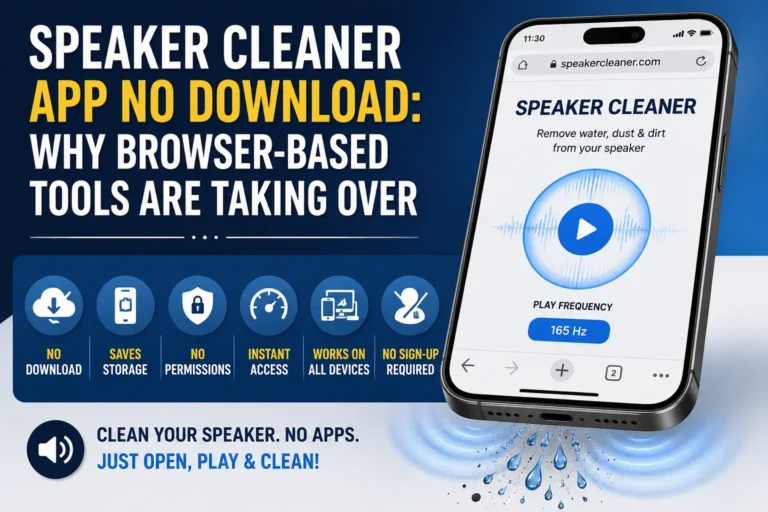
If you’d rather not install a third-party shortcut, browser-based water-eject tools work just as well and require no download at all.
- Open Safari or Chrome on your iPhone and go to a water-eject tool.
- Remove any case covering the speaker, if possible.
- Set your volume to maximum.
- Hold your iPhone with the speaker facing downward.
- Tap the play or start button and let the full cycle run without interruption.
- Wipe the speaker area with a dry cloth once the cycle completes.
This method is especially useful if you’re on an older iPhone model where Shortcuts permissions or compatibility might be inconsistent.
Watch: Ejecting Water from an iPhone Speaker
If you’d rather follow along visually, this video demonstrates the full Siri Shortcut water-ejection process on an iPhone:

The Science Behind Water Ejection
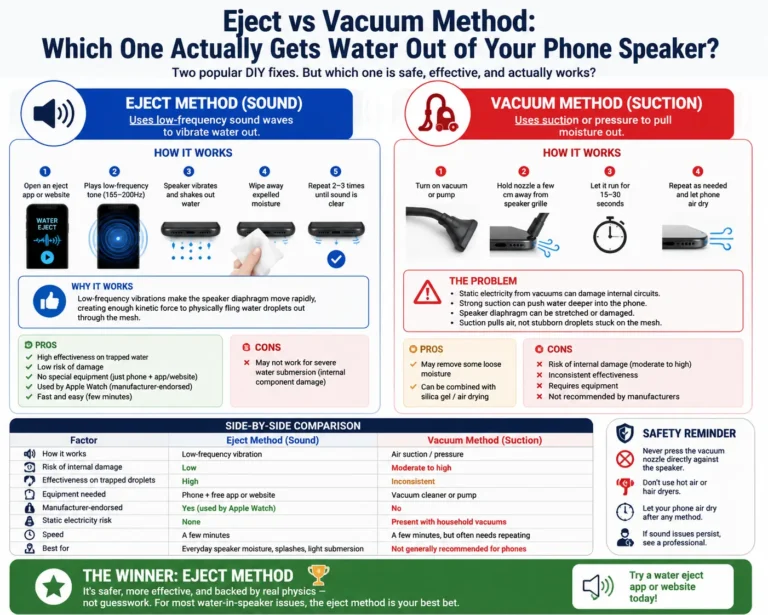
Both the Siri Shortcut method and web-based tools rely on the same acoustic principle. Your iPhone’s speaker produces sound by vibrating a thin membrane. A water-eject tone is tuned to a frequency range — commonly cited around 165 Hz, or a sweep somewhere between 100 and 300 Hz — where that membrane’s physical movement is at its strongest.
That forceful vibration breaks the surface tension holding water droplets against the speaker mesh and pushes them outward, away from the driver, rather than leaving them to sit and potentially cause corrosion over time. It’s the exact same mechanism Apple built into the Apple Watch’s Water Lock feature, just applied manually through a shortcut or tool since iPhone doesn’t include it as a native setting.
Which iPhone Models Support Water Ejection?
Since this method relies on the phone’s own speaker and doesn’t require special hardware, it generally works on any iPhone with stereo speakers and a water-resistant design — which covers the iPhone 7 and virtually every model released since. Compatibility with Siri Shortcuts specifically requires iOS 12 or later, which the vast majority of active iPhones already run.
| iPhone Range | Water Resistance Rating |
|---|---|
| iPhone 7 – iPhone SE (2nd/3rd gen) | IP67 |
| iPhone XS and later | IP68 |
Keep in mind these ratings mean water-resistant, not waterproof — extended submersion still carries real risk regardless of the IP rating.
What to Do If the Speaker Still Sounds Muffled
If a few rounds of the water-eject shortcut or tool haven’t fully cleared things up, try these additional steps:
- Give your iPhone a gentle tap against your hand with the charging port facing down, which can help dislodge any remaining surface water.
- Let it rest speaker-down in a dry, ventilated spot for a few hours, allowing any deeper trapped water to migrate toward the opening before trying again.
- Use a soft, dry cloth to wipe the speaker and surrounding grilles between attempts.
- Avoid charging your iPhone until you’re confident the charging port itself is dry, to reduce the risk of a short circuit.
What to Avoid When Your iPhone Speaker Gets Wet
- Don’t use a hair dryer. Heat can damage internal adhesives and seals that keep your iPhone water-resistant in the first place.
- Don’t use compressed air. It risks pushing water further into the device rather than out.
- Don’t insert anything into the speaker holes, including cotton swabs, toothpicks, or SIM ejector tools.
- Don’t rely solely on rice. It may absorb some ambient humidity over time, but it doesn’t actively push water out of a speaker grille the way vibration does, and rice dust can itself get lodged in ports.
- Don’t ignore extended submersion. If your iPhone was fully underwater for more than a few seconds, water ejection alone may not be enough, and professional inspection is worth considering.
Frequently Asked Questions
How do I eject water from my iPhone speaker without an app?
You can use a browser-based water-eject tool directly in Safari with no installation required, or set up the free Water Eject Siri Shortcut, which also doesn’t require a traditional app download.
Is it safe to use the Water Eject Siri Shortcut?
Yes. It works by playing a low-frequency tone through your iPhone’s own speaker — mechanically no different from playing music. As long as you’re using a shortcut from a reputable source, it’s considered a safe method.
How long does it take to eject water from an iPhone speaker?
Most cycles run for about 15 seconds. Light exposure often clears in one or two rounds, while heavier exposure may need three or more attempts with short breaks in between.
Can I eject water from my iPhone speaker while it’s charging?
It’s best to avoid charging your iPhone until you’re confident all moisture, especially near the charging port, has cleared. Running the water-eject process itself doesn’t require your iPhone to be plugged in.
My iPhone was submerged for a while — will water ejection still work?
It can still help clear the speaker grille specifically, but extended submersion carries a higher risk of internal moisture beyond what sound vibration alone can resolve. If your iPhone shows other issues after drying, a professional check is the safer next step.
Final Thoughts
Ejecting water from an iPhone speaker doesn’t require rice, a hair dryer, or a trip to the Apple Store. A Siri Shortcut or a simple web-based tool uses the exact same low-frequency vibration principle Apple already trusts in the Apple Watch — safely pushing trapped water out through the speaker grille in about 15 seconds per cycle. Keep the shortcut handy on your home screen, and the next time your iPhone takes an unexpected splash, you’ll have your speaker sounding clear again in minutes.