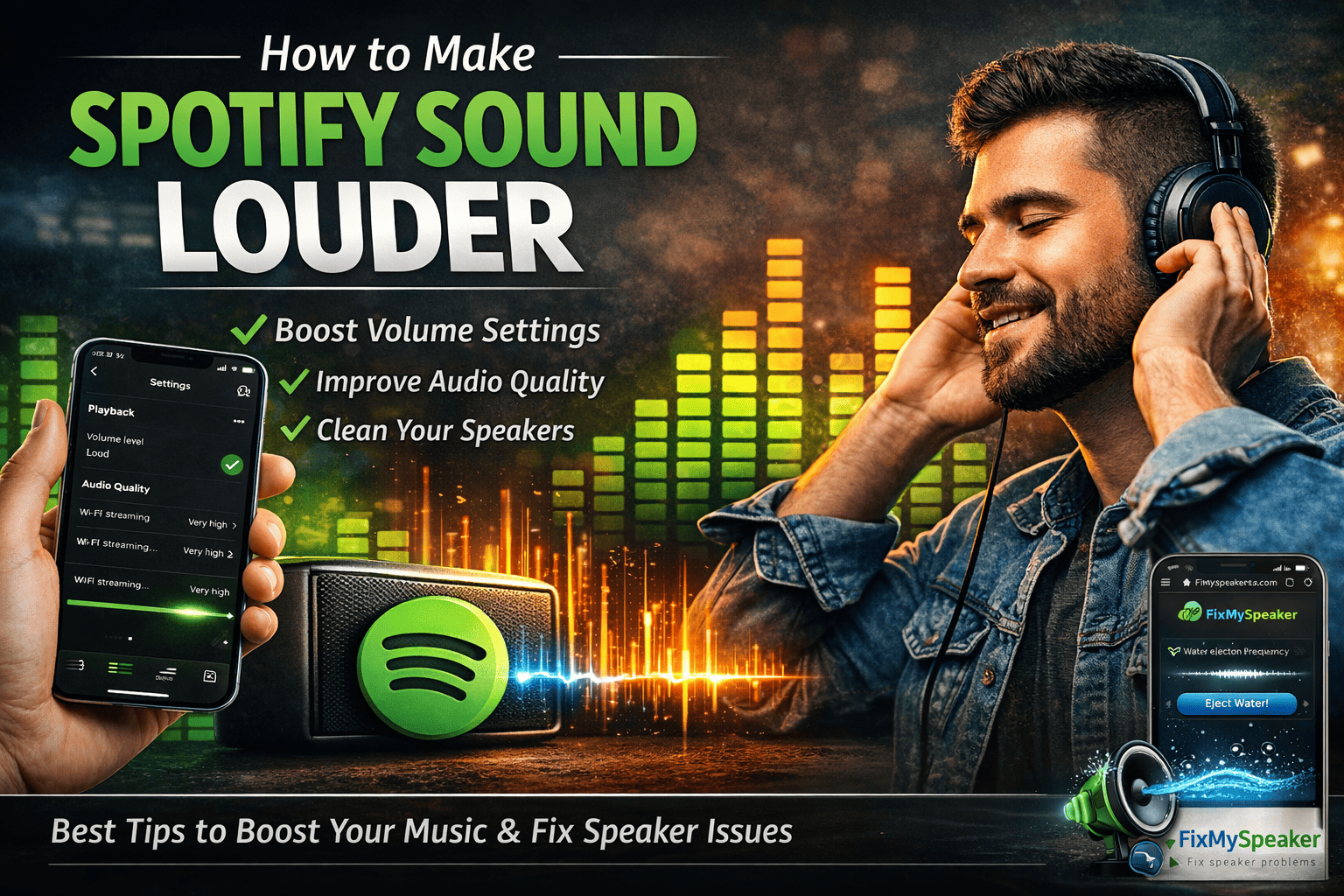
How to Make Spotify Sound Louder: A Complete Guide to Boosting Your Audio Experience
Spotify has become one of the most popular platforms for streaming music and podcasts, offering millions of tracks for all tastes. However, some users may find themselves struggling with Spotify’s sound output, feeling like the volume is too low, even at maximum settings. If you are one of those users, do not worry! This guide will provide you with simple, effective solutions to help you make Spotify sound louder and enjoy your music at its best.
The problem of low Spotify volume is more common than most people realize. It can stem from hidden app settings, device-level configurations, or even physical obstructions in your speaker hardware. The good news is that most of these issues have straightforward fixes — and this guide covers every single one of them.
Adjust the Playback Volume Level on Spotify
Sometimes the issue with low sound is simply related to the playback volume level setting within Spotify itself. By adjusting this setting, you can achieve louder audio output almost instantly. This is the single most effective change you can make, and it takes less than a minute.
Steps to Adjust Playback Volume Level
Step 1: Open the Spotify app on your phone or computer. Make sure you are logged into your account.
Step 2: Go to Settings. Tap on the gear icon located in the top right corner of the screen on mobile. On desktop, click your profile picture and select Settings from the dropdown menu.
Step 3: Navigate to Playback Settings. Scroll down until you find the Playback section. This section contains all the controls that affect how Spotify sounds on your device.
Step 4: Adjust Volume Level. In the Volume Level setting, you will see three options — Quiet, Normal, and Loud. Select Loud to increase the maximum volume Spotify can produce. This setting boosts the output gain without affecting audio quality.
Why This Setting Matters
The Volume Level setting is Spotify’s internal volume limiter. When set to Normal (the default), Spotify intentionally caps its output to maintain consistent volume across tracks. Switching to Loud removes this cap, allowing naturally quieter tracks to play at their full potential. This alone can make a dramatic difference, especially on mobile devices.
Important Note for Free Users
On mobile devices, the Loud setting is only available to Spotify Premium subscribers. Free users on mobile cannot access this feature. However, desktop users — both free and premium — can use the Loud setting without any restrictions. If you are a free mobile user, the remaining tips in this guide become even more valuable for you.
Optimize Audio Quality for High Resolution Sound
If you are a Spotify Premium user, you can further improve your listening experience by selecting the highest audio quality settings available. Higher quality audio carries more dynamic range, which often translates to a fuller, louder-feeling sound.
How to Change Audio Quality on Spotify
Step 1: Access Spotify Settings. Open the Spotify app and go to Settings using the same steps described above.
Step 2: Scroll Down to Audio Quality. Under Audio Quality, you will see separate options for WiFi Streaming, Cellular Streaming, and Downloads. Each of these can be set independently.
Step 3: Choose Very High Quality. For WiFi and Cellular Streaming, select Very High. This setting ensures that Spotify streams audio at 320 kbps, delivering superior sound clarity and volume. The difference between Normal (96 kbps) and Very High (320 kbps) is noticeable even on standard speakers.
Step 4: Adjust Download Quality. If you listen offline, also set Download Quality to Very High. This ensures your downloaded tracks match the quality of your streaming.
What Free Users Can Do
For free Spotify users, you can select the highest quality available — usually High Quality (160 kbps). While this is the best option for free accounts, it may not provide the full loudness and clarity of a Premium account. The jump from 96 kbps to 160 kbps is still significant and worth enabling.
Does Higher Quality Mean Louder?
Not directly, but indirectly, yes. Higher bitrate audio preserves more of the original recording’s dynamics. Compressed, low-bitrate audio often loses punch and presence, making it feel quieter even at the same volume level. Switching to Very High restores that lost presence, making the music feel fuller and more powerful.
Clean Your Speakers for Better Sound
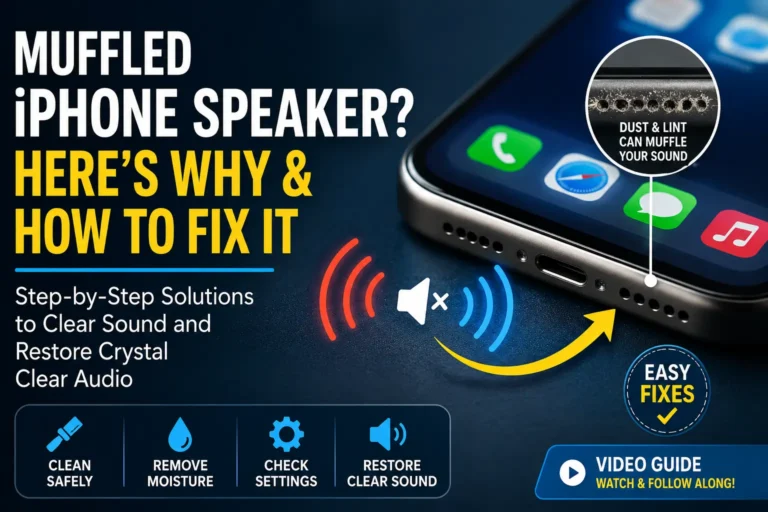
Sometimes low sound quality or muffled audio is not a problem with Spotify but with your device’s speakers. Dust and dirt can accumulate in the speaker holes of your phone, tablet, or computer, which can reduce audio output significantly.
Why Physical Cleaning Matters
Over time, your device’s speaker grille collects lint from pockets, dust from the air, and even tiny debris from everyday use. This buildup physically blocks sound waves from escaping, making your music sound quieter and less clear — regardless of what settings you change in Spotify.
How to Clean Your Device’s Speakers
- Use a Soft Brush: Gently clean the speaker holes with a soft brush — an old, clean toothbrush works perfectly. Use light, circular motions to loosen debris without pushing it further inside. Avoid using anything sharp like pins or needles, which can puncture the delicate speaker diaphragm.
- Use Compressed Air: If you have access to compressed air, blow short bursts into the speaker grill to push out any trapped particles. Hold the can at least a few inches away to avoid moisture from the propellant entering the speaker.
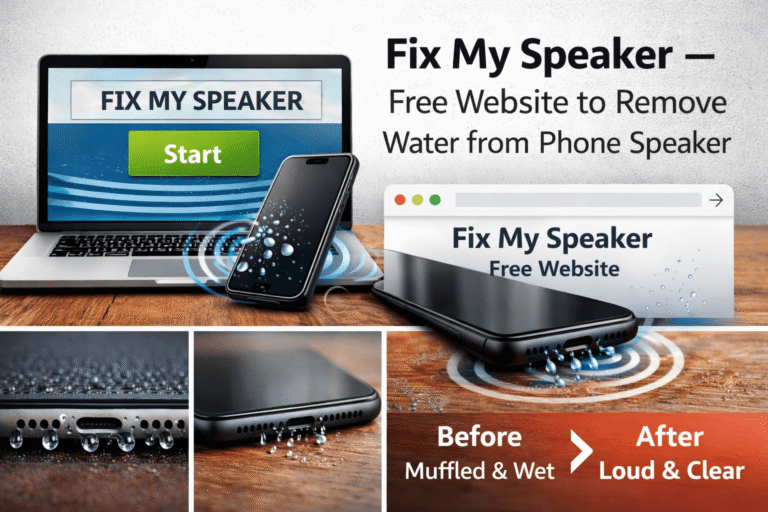
- Be Careful with Water: If you accidentally get water inside the speaker, it can severely affect sound performance. In such cases, try using a free web-based tool like FixMySpeakersx.com, which plays specific low-frequency tones to vibrate water out of the speaker mesh. This method is safe, free, and works within minutes.
By keeping your device’s speaker holes clean, you will prevent sound distortion caused by dust or moisture and enjoy clearer, louder audio from Spotify and all other apps.
Enhance Sound with External Speakers & Headphones
If you have tried adjusting settings on Spotify and cleaning your device but the sound is still too low, consider using external speakers or high-quality headphones. Built-in phone and laptop speakers are physically limited in how loud and clear they can be. External audio devices bypass those limitations entirely.
External Speakers
Bluetooth speakers or wired speakers often provide much better sound than your device’s built-in speakers. Investing in a quality Bluetooth speaker or wired speaker system can make a huge difference in volume and sound quality.
Consider brands like Bose, JBL, or Sony for speakers that offer powerful, clear audio output. Even a modestly priced portable speaker will outperform built-in phone speakers by a wide margin. Look for features like passive radiators and dedicated tweeters for the best results.
Headphones
High-quality headphones can also amplify the sound experience dramatically. Choose headphones with noise cancellation features or enhanced bass for a richer, louder sound. Over-ear headphones, in particular, are designed for high output sound and can help bring your Spotify music to life with more volume and clarity than earbuds.
Brands like Sony, Bose, Sennheiser, and Audio-Technica offer excellent options across various price ranges. Even budget-friendly options from brands like Anker Soundcore can deliver impressive volume and clarity.
Utilize Spotify’s Equalizer Settings
Spotify provides an equalizer feature that lets you adjust the bass, treble, and other audio frequencies. Boosting certain frequencies can help you achieve a louder, more dynamic sound without touching the volume slider.
How to Use Spotify’s Equalizer Settings
Step 1: Open Spotify Settings. Navigate to Settings and scroll down to find the Equalizer option. On mobile, it is located under the Playback section. Note that the equalizer is only available on the mobile app, not the desktop version.
Step 2: Choose a Profile. Use predefined profiles like Loudness or Bass Booster to enhance the sound’s volume instantly. These presets are designed to emphasize frequencies that make music feel louder and more present.
Step 3: Customize Manually. If you prefer more control, manually adjust the sliders to boost bass or treble for a louder sound. Raising the mid-range frequencies (around 1kHz to 4kHz) can make vocals and instruments cut through more clearly, which our ears perceive as increased loudness.
Equalizer Tips for Maximum Loudness
- Boost 60Hz-250Hz for deeper, more powerful bass.
- Boost 1kHz-4kHz for clearer vocals and instruments.
- Slightly reduce frequencies above 8kHz to avoid harshness at high volumes.
- Experiment with different settings to find what sounds best on your specific headphones or speakers.
Check for Software and Firmware Updates
If your device is running outdated software or the Spotify app is not updated, it can cause issues with sound performance. Bugs in older versions can affect volume output, equalizer functionality, and even playback stability.
How to Update Your Device and Spotify
- For Mobile Devices: Go to your app store — Google Play or the Apple App Store — and check if updates are available for Spotify. Enable automatic updates to ensure you never miss a performance improvement.
- For Computers: On desktop, Spotify typically updates automatically when you restart the app. You can also check for updates manually by clicking Help in the menu bar (Windows) or Spotify in the menu bar (Mac) and looking for an update option.
- For Your Operating System: Check your phone or computer’s system settings for OS updates. System-level audio drivers and Bluetooth stacks are updated through OS updates, and outdated versions can cause volume and connectivity issues.
Updating ensures that you have the latest features and fixes, which could help improve sound performance across all your audio apps, not just Spotify.
Upgrade to Spotify Premium for Unrestricted Sound Quality
For the best sound experience, Spotify Premium offers superior benefits. Not only does it provide access to the highest audio quality (320 kbps), but it also removes ads, giving you an uninterrupted listening experience.
What You Get with Spotify Premium
- Higher Bitrate Streaming: Get the loudest, clearest sound possible with Very High quality streaming at 320 kbps.
- Unlocked Volume Level: Access the Loud volume setting on mobile devices.
- No Ads: Skip annoying interruptions and enjoy your music at full volume without jarring volume changes during ad breaks.
- Offline Listening: Download music to listen offline at high-quality sound, perfect for travel or areas with poor connectivity.
- Unlimited Skips: Skip tracks freely to find the perfect song for your mood.
For serious music listeners, the upgrade from Free to Premium is the single biggest improvement you can make to your Spotify experience — not just for volume, but for overall enjoyment.
Conclusion
Making Spotify sound louder is a combination of adjusting in-app settings, optimizing audio quality, cleaning your device’s speakers, and using external audio devices like headphones or speakers. Each tip in this guide addresses a different potential cause of low volume, and together they can transform your listening experience.
Whether you are using the mobile app or desktop version, these solutions will help you enhance your listening experience and get the most out of your music. Start with the quickest fixes — adjusting the Volume Level and Audio Quality settings — then work through the physical cleaning and hardware upgrades as needed.
By following these simple solutions, you can enjoy a louder, more dynamic Spotify sound. Your favorite songs deserve to be heard at their full potential, and now you know exactly how to make that happen.